Installing
Burndown needs macOS 13 or later. Releases are universal, so Apple Silicon and Intel both work.
Releases are ad-hoc signed, because the project does not yet have a paid Apple Developer ID certificate. macOS quarantines anything you download and Gatekeeper blocks the first open of a quarantined ad-hoc signed app, so every route below is really a choice about how you would rather deal with that. They are listed easiest first.
1. Homebrew:
HOMEBREW_CASK_OPTS="--no-quarantine" brew install --cask maz0x/tap/burndownThe environment variable tells Homebrew not to attach the quarantine flag to the download.
Homebrew's own documentation calls this a Gatekeeper bypass that reduces system security, so it
is offered as your informed choice, not as a magic flag: you are deciding to trust this build.
Homebrew removed the --no-quarantine command-line flag, and a cask has no way to
set the variable for you, so this prefixed form is the only one that still works.
2. Download, then clear the flag. Grab the latest release, unzip it, drag Burndown to Applications, and remove the quarantine attribute:
xattr -d com.apple.quarantine /Applications/Burndown.app3. Without touching the Terminal. Try to open Burndown and let macOS block it. Then open System Settings, go to Privacy & Security, scroll down to the Security section, and click Open Anyway next to the message about Burndown, entering your login password when asked. The Open Anyway button only appears for about an hour after a blocked launch, so if it is not there, try opening the app again first and go straight back to System Settings.
macOS 15 Sequoia removed the old right-click, Open shortcut and macOS 26 has not brought it back, so System Settings is the only click-only route now.
4. Build from source, which needs the Xcode Command Line Tools and takes about a minute. This is the zero-friction option: an app you compiled locally is never quarantined, so Gatekeeper never appears at all.
git clone https://github.com/maz0x/burndown && cd burndown
./build.sh
open Burndown.app
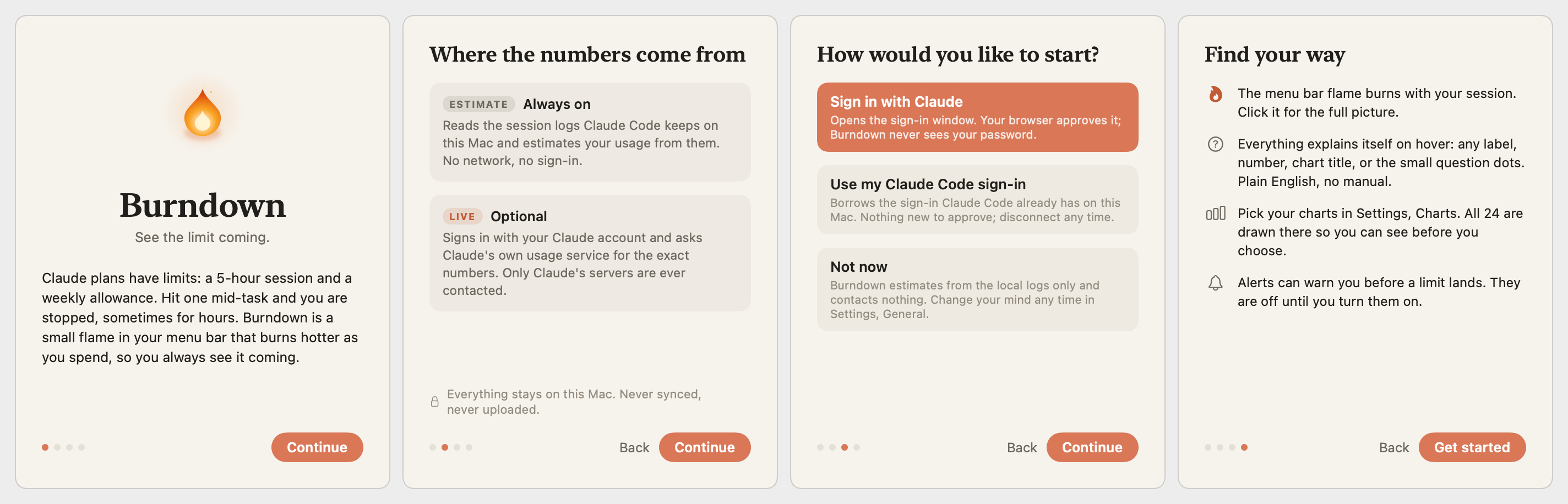
On first launch you get a short welcome tour. You can reopen it any time from the About window.
Open at login
Settings, General, "Open at login" registers a proper macOS login item, so it survives moving or renaming the app.
Estimate and live mode
Burndown has two sources of truth and always tells you which one you are looking at.
| Mode | Where the numbers come from | Network |
|---|---|---|
| Estimate the default on a fresh install |
The session logs Claude Code keeps under ~/.claude. Token counts are exact;
the percentage against your cap is inferred from your own history. |
None, apart from the daily update check |
| Live opt-in |
Claude's own usage service, using your account. These are the same server-side figures behind Claude's usage page, with your exact local token counts layered on top. | Anthropic only |
The badge at the top right of the card names the state: LIVE, EST, STALE, LIMITED, or OFFLINE. Hover it for a plain-English explanation and the age of the data. When the app cannot know something, it says so rather than guessing.
Switch modes in Settings, General, "Live usage from Claude".
Signing in
Two ways, both reversible.
- Sign in with Claude. Opens Claude's OAuth page in your browser. You approve, paste the code back, and that is it. The app never sees your password.
- Use my Claude Code sign-in. If Claude Code is already signed in on this Mac, Burndown can borrow that credential, with your explicit permission. It only ever uses the access token while it is still valid and never spends Claude Code's refresh token, so it cannot invalidate your CLI login.
Signing out really signs out. It deletes the stored token, revokes permission to borrow the Claude Code sign-in, clears the diagnostic log, and turns live mode off. Nothing re-connects behind your back.
Reading the card
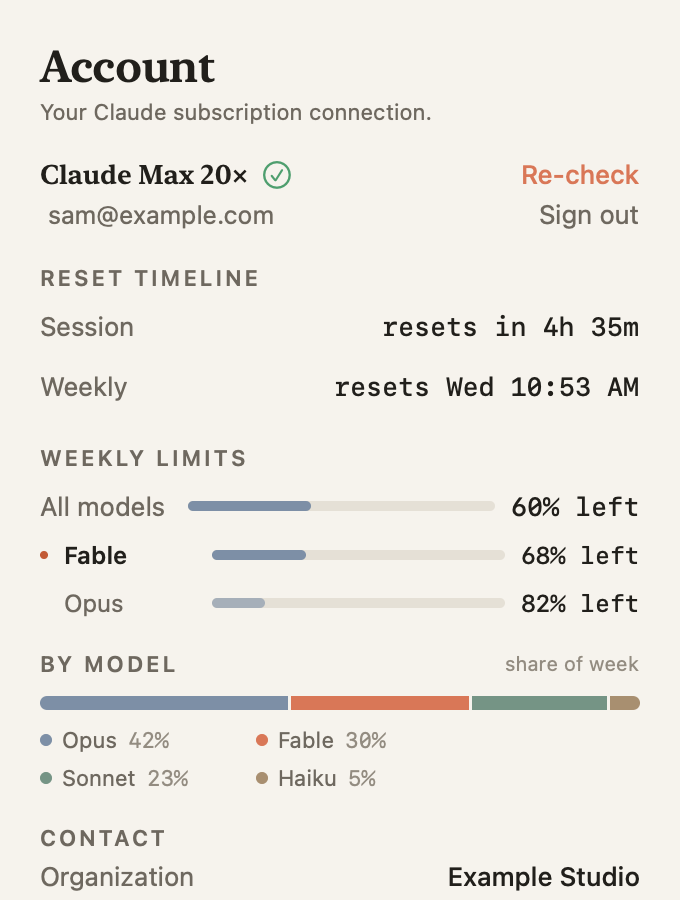
Click the menu bar item to open the card. Top to bottom:
- Header. Your plan name and the status badge.
- Session. The big number is the percentage of your rolling 5-hour session used. The ring beside it counts down to the reset. Underneath: the estimated pay-as-you-go cost of that usage and your live burn rate in tokens per minute.
- This week. Your weekly allowance across all models, a seven-day spark, any per-model weekly caps shown as percent left, and a BY MODEL split you can expand.
- Charts. Up to six of your choosing.
- Chats burning now. The conversations spending tokens at this moment, busiest first, with their rate over the last minute. Right-click a row to rename it.
Every section has a small info mark; click it for a plain-English explanation of what you are looking at. Turn the dots off in Settings, Popover, under "Fine-tune".
Choosing charts
Settings, Charts draws every chart with sample data (or your own, with the toggle) so you can see each one before you choose. Click a chart to add it to the card, click again to remove it. The number badge shows its position; the card stacks up to six.
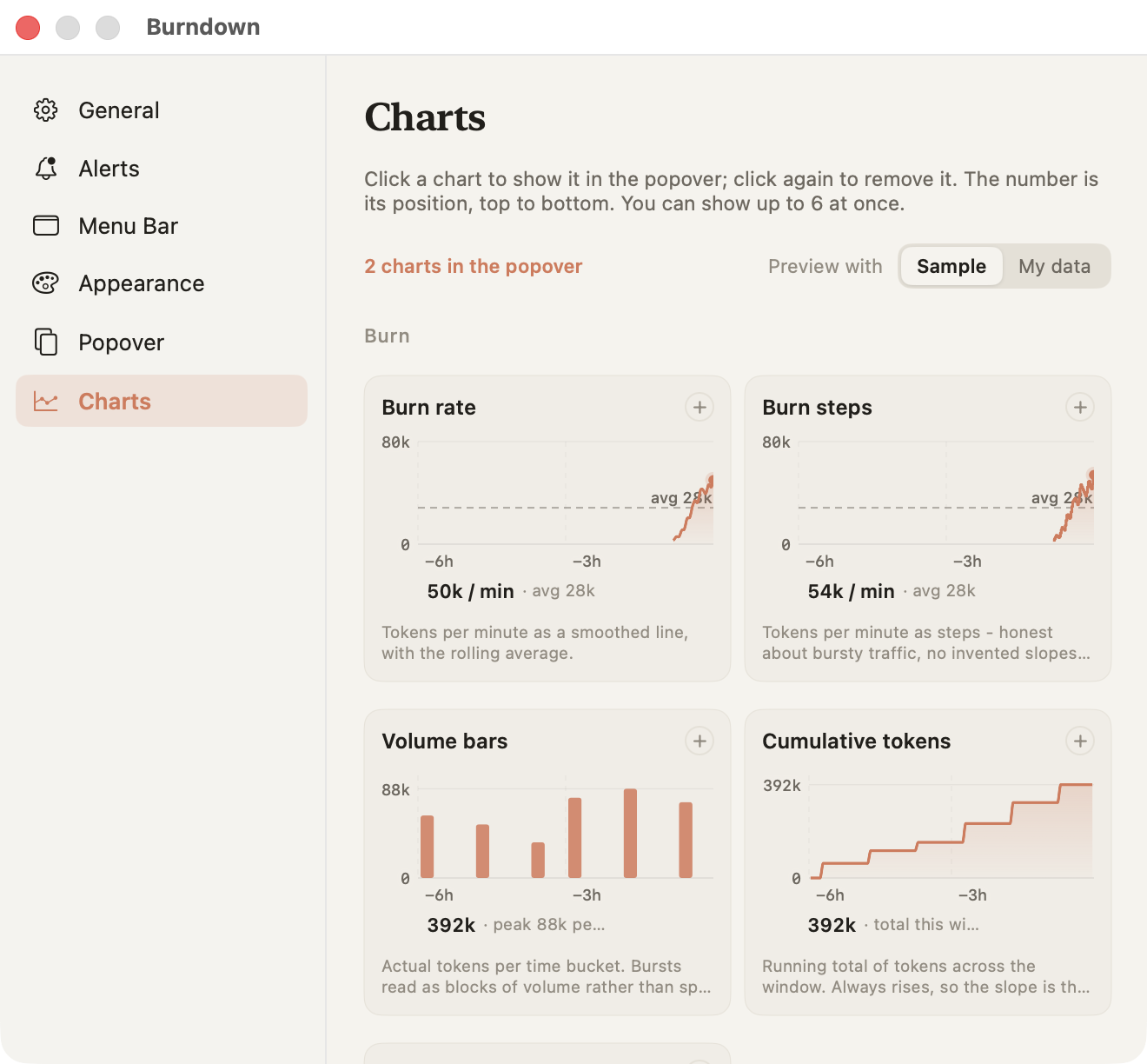
The five groups answer different questions:
| Group | Answers |
|---|---|
| Burn | How hard am I pushing right now: burn rate, steps, volume bars, cumulative tokens, burn distribution. |
| Limits | Will I make it to the reset: session and week burndowns against an even pace, usage percentages, a pace gauge, all model caps. |
| Breakdown | Where did it go: by model, by project, cost per day, top chats, and proportional mixes. |
| Rhythm | When do I work: hour of day, activity heatmap, weekday profile, tokens per day, session blocks. |
| Detail | What is the traffic made of: cache efficiency, input versus output, spend to date. |
Chart options live under the gallery: chart style, the rolling time window (30 minutes to all time), the day span for day-scale charts (7 to 90 days), the hover readout, and the refresh countdown.
Alerts
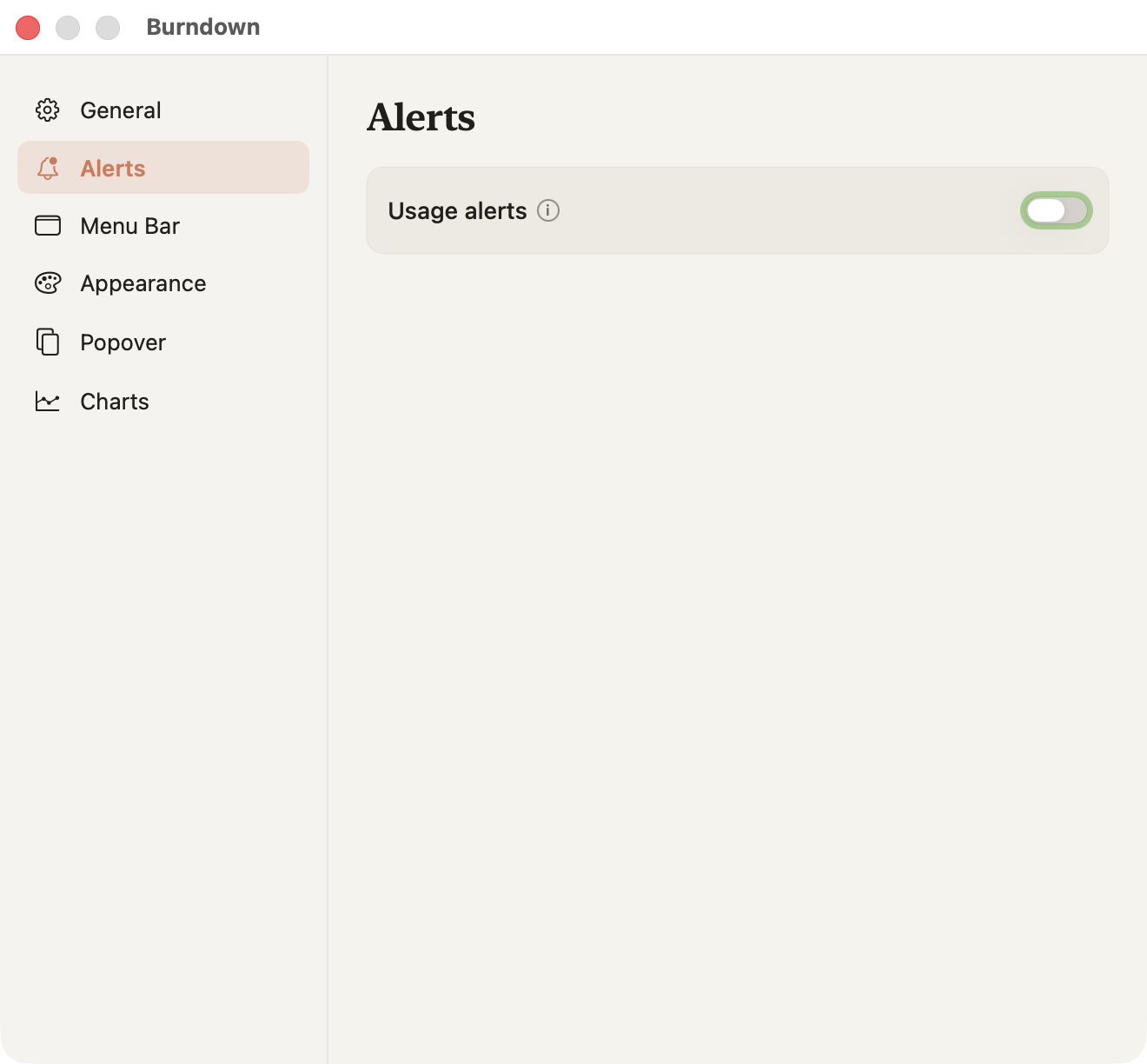
Everything in Settings, Alerts is off until you switch it on, and each alert can be enabled independently.
| Alert | Fires when |
|---|---|
| Session / Weekly / Opus / Sonnet threshold | That metric crosses the percentage you picked, once per window, re-arming at the reset. |
| Burn spike | Your rate crosses a tokens-per-minute threshold. Uses hysteresis so it cannot flap, and names the conversation responsible. |
| Forecast | The projected time to your session limit drops below 30 minutes, 1 hour, or 2 hours, while there is still time to wrap up. |
| Runaway burn | Your rate runs far above your own recent normal, measured from a median baseline rather than a fixed number. Built for the agent that keeps spending while you are away. |
| Budget | You are on pace to exceed a spend or token budget you set yourself, per day or per week. Set it in the Insights window. |
| Window reset | A fresh session or weekly window has started. |
| Weekly digest | Optional, once on Mondays: tokens and estimated cost for the week. |
The Delivery group covers repeat-while-over, quiet hours, and six original alert sounds. A persistent de-duplication backstop means the same alert cannot repeat at you, even across restarts, and every banner carries a Snooze button.
Insights and export
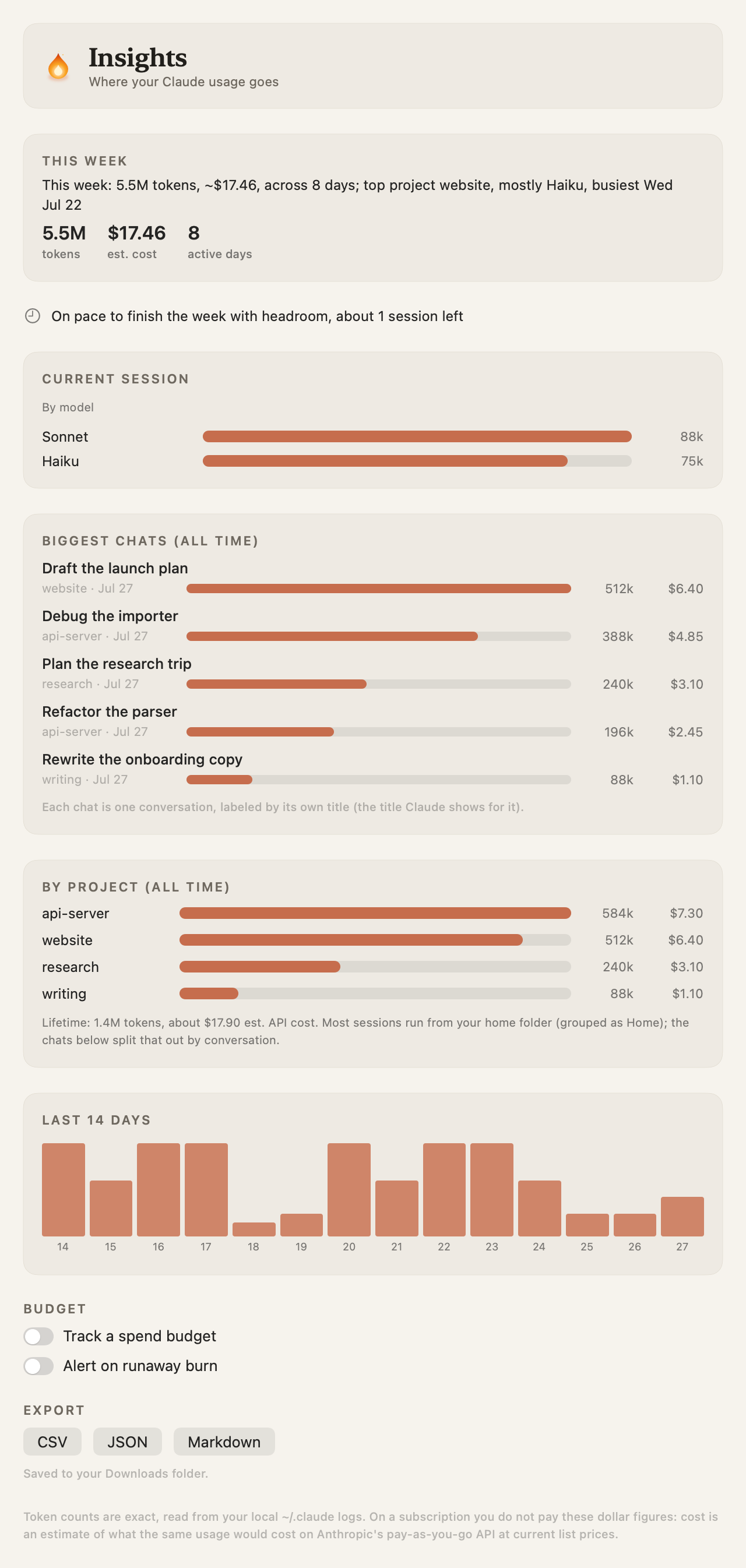
Right-click the menu bar item, then Insights. It scans your full history, so it takes a moment on first open.
- This week in words, with tokens, estimated cost, and active days.
- Current session by model.
- Biggest chats, all time. One row per conversation, labeled with its own title.
- Every project, ranked, with lifetime totals.
- Last 14 days, and advisory lines for pacing, model mix, and budget when they have something worth saying.
- Export every usage record as CSV, JSON, or Markdown, saved to Downloads.
Themes and appearance
Settings, Appearance. One palette choice recolors the card, charts, widget, and Settings together.
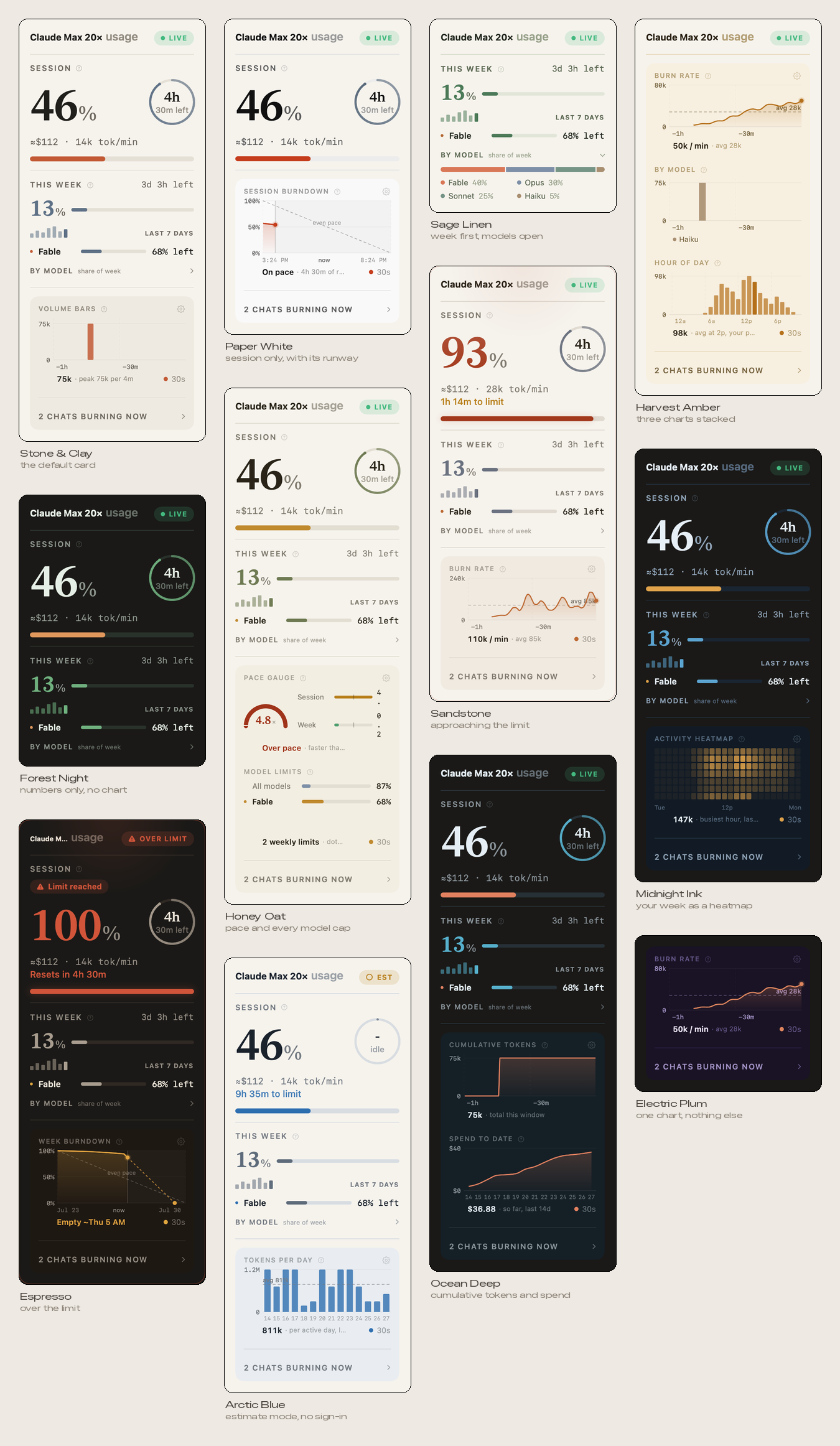
- Twenty-plus themes, plus a separate Light/Dark/System switch.
- Glass: Liquid Glass on macOS 26, frosted, or clear, with five presets and sliders for opacity, blur, saturation, tint, borders, corner radius, shadow, and window transparency. A live preview shows the real text contrast ratio as you tune.
- Accent color and "tint by usage" (adaptive, solid, or none).
- Resize the card itself with the grip in its bottom-right corner, in the popover and the floating window. This is not a zoom: the type stays the same size and the card reflows. Drag sideways and the card widens, so progress bars stretch, chat names stop truncating, and charts get more room. Drag down and every chart's plot gets taller. Double-click the grip to snap back to the original size.
- A dozen number animations, with a live preview. All of them step aside when macOS Reduce Motion is on.
Settings, Popover is an editor for the card itself: every element has a visibility switch, and whole sections can be reordered or hidden. It also holds Popover size, from 70 to 160 percent, which scales text and charts together as a zoom.
Settings, Menu Bar chooses the glyph from a couple dozen styles, plus number format, time-to-reset, digit weight, and (for the flame) size, sparks, and smoke.
The quietest style is Beacon: it sits in the menu bar's own ink like a system icon and winks to your accent for a fraction of a second every few seconds. Selecting it reveals a Beacon adjust section with five presets and every knob behind them: the mark that winks, the wink curve, cadence, randomness, length, strength, glow, a rhythm that can follow your burn rate, a wink color that can ride your usage (warm accents deepen toward rust near the cap; cool accents jump to amber so the hue stays readable), a double wink past your alert threshold, and a Try it button that fires one wink on demand.
Demo Mode, in the right-click menu, synthesizes activity so you can watch everything move while you try styles, without spending a token. It is never saved.
Widget and Ember Line
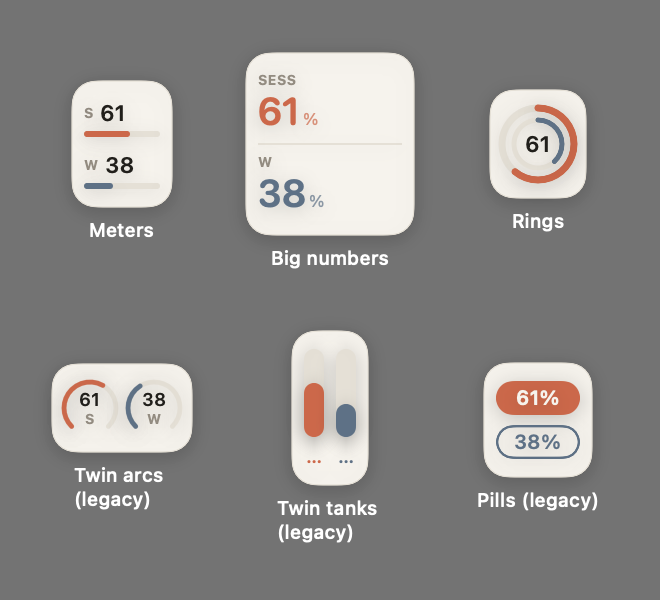
All three live in Settings, Companions, one section each. Each starts with a single on/off switch, and its detail appears once you turn it on.
- Docked widget. Clings to an edge of the Claude Desktop window and follows it, appearing only while Claude is frontmost. macOS asks for Accessibility permission the first time; that is what lets it follow instantly instead of lagging.
- Ember Line. A filament along a screen edge showing what is left of your session, with eight styles and controls for thickness, length, glow, and sparks.
- Floating card. The same card, pinned on your desktop, optionally always on top.
Terminal gauge
Right-click the menu bar item, then Install Terminal Gauge. It writes a small script and points Claude Code's statusline at it, so your limits ride inside every Claude Code session.
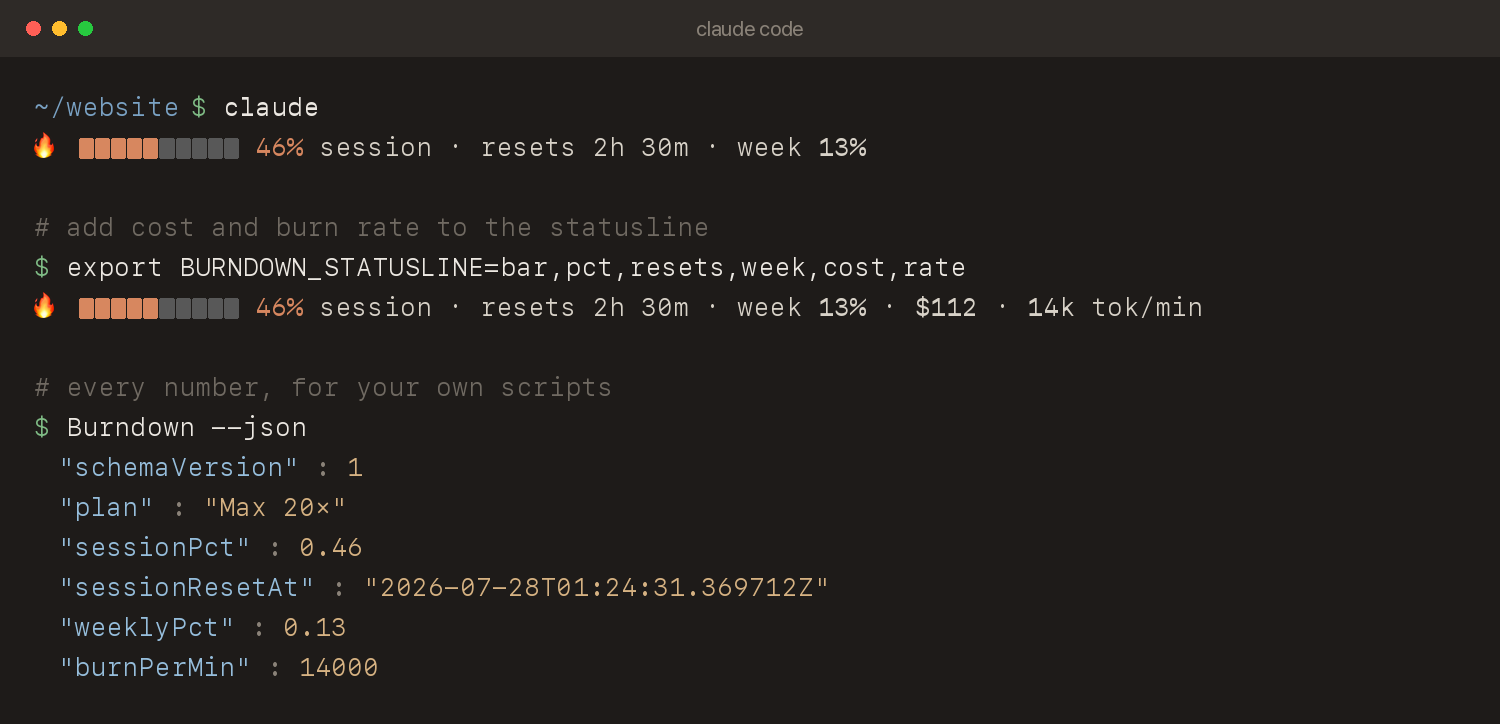
The install is reversible: your ~/.claude/settings.json is backed up once before
the first install, and Remove Terminal Gauge deletes only the statusline entry Burndown added.
Compose the line from six segments with an environment variable:
export BURNDOWN_STATUSLINE=bar,pct,resets,week,cost,rate  # default: bar,pct,resets,week
export BURNDOWN_ASCII=1   # plain characters instead of the flame and block cells
The JSON contract
Two doors into the same data. Burndown --json prints on demand, and
~/.config/burndown/burndown-live.json is rewritten on every refresh, so scripts can
read it without spawning a process.
{
  "burnPerMin" : 14000,
  "generatedAt" : "2026-07-26T01:26:30Z",
  "plan" : "Max 20×",
  "schemaVersion" : 1,
  "sessionCost" : 112,
  "sessionPct" : 0.46,
  "sessionResetAt" : "2026-07-26T04:00:00Z",
  "weeklyPct" : 0.13,
  "weeklyResetAt" : "2026-07-29T09:30:00Z"
}
Percentages are fractions between 0 and 1. Times are ISO 8601. Keys are sorted and the output
is byte-stable, so it diffs and caches cleanly. A missing optional field means unknown, never
zero. schemaVersion only changes on a breaking change, and the contract has its own
test suite so it will not drift under you.
One difference between the two doors: burnPerMin and sessionCost are
live readings, so only the running app knows them. The file carries both. A cold
Burndown --json reads the cache and reports each as null, which is the
contract's way of saying unknown, rather than inventing a figure.
Files and uninstalling
| Path | What |
|---|---|
~/.config/burndown/ | All local state, owner-only permissions |
~/.config/burndown/token.json | Your sign-in token, deleted on sign-out |
~/.config/burndown/live.json | Cached usage so the card is instant at launch |
~/.config/burndown/chart-history.json | Chart history |
~/.config/burndown/burndown-live.json | The JSON contract for your scripts |
~/.config/burndown/live-debug.log | Diagnostics, size-capped, never contains your token |
To uninstall: quit Burndown, turn off Open at login, delete the app, and delete
~/.config/burndown. With Homebrew, brew uninstall --zap --cask
maz0x/tap/burndown does all of it.
Updates
Burndown checks GitHub once a day for a newer version, and shows it at the top of the right-click menu and in Settings, General. One click installs it: the download is checked against its published SHA-256 and its code signature is checked for integrity, the app is replaced in place, and it restarts. Both checks catch a corrupted download; neither proves origin the way notarization would, since the signature is still ad hoc. Because the app fetches the update itself rather than a browser, macOS does not quarantine it, so there is no Gatekeeper prompt on updates.
Turn the daily check off in Settings, General. Nothing installs without you clicking.
Troubleshooting
The menu bar item is missing
A menu bar manager such as Bartender or Ice may be hiding it; check there first. If your menu bar is crowded, macOS itself hides items on notched Macs.
macOS says the app cannot be opened
This is the ad-hoc signing situation described under Installing. The
quickest fix is xattr -d com.apple.quarantine /Applications/Burndown.app; if you
would rather not use the Terminal, click Open Anyway in System Settings, Privacy & Security,
Security, within about an hour of the blocked launch. Right-click, Open no longer works: Apple
removed it in macOS 15.
It says EST and I expected LIVE
Live mode is opt-in. Check Settings, General, "Live usage from Claude", and that you are signed in under Account. If you signed out, that also turned live mode off, by design.
The badge says STALE, LIMITED or OFFLINE
STALE means the last successful fetch is older than expected, and you are seeing the last known numbers. LIMITED means Claude's usage service is rate limiting; Burndown backs off and retries on its own. OFFLINE means it could not reach Claude at all. Click the badge to retry.
My charts only show a few days
Day-scale charts follow the Day span setting in Settings, Charts, and can only show history that exists in your local logs. A brand-new install has little history; it fills in as you work.
macOS asked for Accessibility permission
Only the docked widget needs it, and only so it can follow the Claude Desktop window without lag. Decline it and everything else still works.
Something else
Open a discussion for questions or
an issue for bugs. The diagnostic log at
~/.config/burndown/live-debug.log often has the answer, and it never contains your
token.